Wednesday, May 30, 2012

Tuesday, May 29, 2012

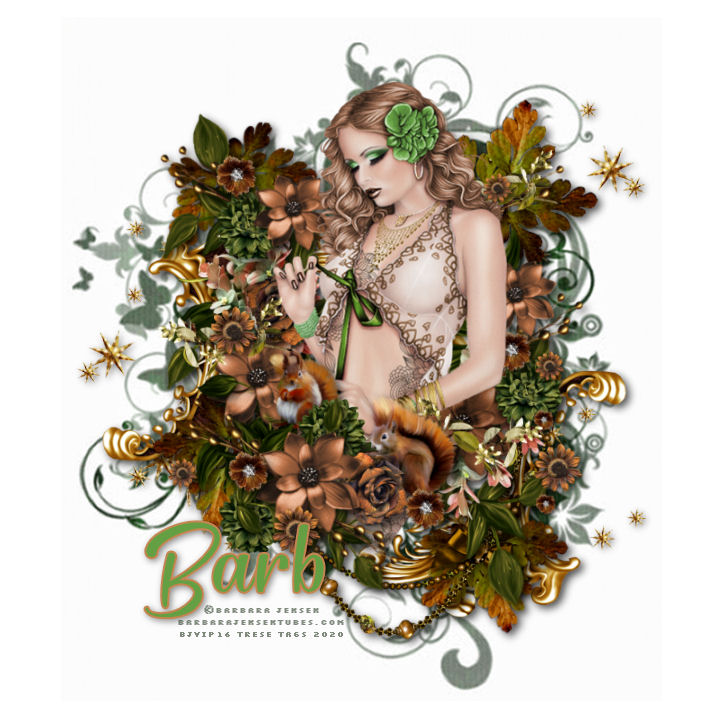
Green Eyed Golden Girl

This tutorial was written by me on May 29th, 2012. Any resemblance to any other tutorial or tag is unintentional and is pure coincidence. Please do not claim my work as your own and do not post to any other website, blog or forum without permission from me. It is written with the assumption that you have a working knowledge of PSP and its components. I wrote it for PSP 9, but it should be compatible with most versions.

I recommend that you read through this or any tutorial you are attempting before starting it so you will know what to expect and how to get organized.  

As with any of my tutorials when a plugin is required, change only the settings I recommend and leave the others on the default settings.

What you will need to accomplish this tutorial is the stunning art of Barbara Jensen.  You can buy her tubes HERE.  Please support the arts and DO NOT use Barb's tubes without a license.  This amazing kit by the incomparable Carita called Golden Green which you can also purchase at Barbara Jensen's store HERE.  Plugins Eye Candy 4000, Alien Skin Eye Candy 5/Impact and Xero.  Mask by me which you can find HERE on this very blog...Trese Masks0125.  Font is A&S Snapper Script which can be downloaded HERE.

Okay, let's get started...

First open all of your elements and your tube into PSP...you can use my image as a reference for the ones I used.  Now start a new 700 x 700 white image...you can resize later.  

Copy and paste el2 into your new white image and resize by 75%.  Go up to Adjust/Brightness and Contrast/Clarify and use these settings:  Strength Effect of 5.

Now beneath this frame layer copy and paste el13, duplicate and mirror it.  Use your Raster Deform tool to resize precisely...again use my image as a reference...you want them to appear to be one large bow.  Give them a drop shadow with the following settings:


Apply this same drop shadow to your frame layer...

Next, copy and paste el15 on top of your frame layer...resize 80% and flip it.  Use your Raster Deform tool and rotate it slightly to the right and then duplicate and mirror it.  Give each the same drop shadow as above.

Now, copy and paste your tube into your working image beneath your frame layer.  Once again use your Raster Deform tool for precise sizing of your tube.  Use my image as a reference for placement of your tube.  Once you have her sized and placed duplicate her and drag the duplicated layer to the very top of your layer palette.  With your eraser tool erase the parts of the tube outside the frame to make her appear to 'pop' out of the frame.  Now go to Effects/Plugins/Xero/Radiance and use these settings:


Now go to Adjust/Automatic Contrast Enhancement and use these settings:


Next go to Adjust/Brightness and Contrast/Clarify and use Strength Effect of 5.

Next copy and paste pp6 above your background layer and resize 50%.  Use your eraser tool to erase any areas of the paper outside the frame.  Go to Effects/Plugins/Xero and use the same settings as above.

Now above your background layer copy and paste pp11, resize 80% and apply your mask Trese Masks0125.  Give it the same drop shadow as we've been using.  Copy and paste el33, duplicate it 3 times for a total of four of these elements.  Place them around your frame as I have done...use my image as a reference.  Copy and paste the rest of the elements and again use my image as a reference for size and placement.

Add your name (set antialias to sharp for crisp edges on your fonts), give it the same drop shadow and then go to Effects/Eye Candy 4000/Corona and use these settings:


Now add your copyright taking care that it is legal and legible.  For neat and professional-looking copyright I use pixel or copy fonts.  You can google and find all sorts of them.  These fonts work best with your antialias set to off and size 6.  For the © emblem hold down your ALT key and type 0169.

Resize to fit your needs and you're done.  Thank you for trying my tutorial.  I hope you learned something to help hone your PSP skills.  Please do not hesitate to contact me with questions or with concerns over broken links, etc.

Blessings,

Trese

Dark Wonderland

This tutorial was written by me on May 28th, 2012. Any resemblance to any other tutorial or tag is unintentional and is pure coincidence. Please do not claim my work as your own and do not post to any other website, blog or forum without permission from me. It is written with the assumption that you have a working knowledge of PSP and its components. I wrote it for PSP 9, but it should be compatible with most versions.

I recommend that you read through this or any tutorial you are attempting before starting it so you will know what to expect and how to get organized.  

As with any of my tutorials when a plugin is required, change only the settings I recommend and leave the others on the default settings.

What you will need to accomplish this tutorial:  the amazing art of Scarlet Gothica which can be purchased at Dreamscape Imaging HERE.  Please support the arts and DO NOT use Scarlet's tubes without a license.  The elements are some elements I have collected over the years and some I have made which I have uploaded for you and can be downloaded HERE.  Mask is one of mine Trese Mask0113 which you can find right HERE on this blog.  Plugin Eye Candy 4000, Alien Skin Eye Candy 5/Impact and Xero.  Font is Lutin_Paniquangoisse...it can be downloaded HERE.

Let's get started...

Start a 700 x 700 new white image...you can resize later.  Copy and paste the frame I have supplied into your new working image...move it to the left of your canvas and duplicate it.  Merge the two frames together.

Next you will copy and paste the paper beneath the frame layer and resize by 60%.  Using your eraser tool erase the areas of the paper outside the frames.  In your layer palette select the frame layer and add a drop shadow by going to Effects/3D Effects/Drop Shadow and use these settings:


Above the frame layer copy and paste your tube.  This particular tube comes with five tubes which are all slightly different.  I used tube 5.  For precise sizing you can always use your Raster Deform tool.  We're now going to tweak the tube a bit.  Once you have copied and pasted her into your image go to Effects/Plugins/Xero/Radiance and use these settings:


Now copy and paste the rest of your elements into your working image..you can use my image as a reference for size and placement.  For the elements you want to 'pop off' the canvas give them a perspective shadow.  You will notice I've already done this for the weeds.  I gave the mushrooms the same perspective shadow.   You will need to resize the mushrooms dramatically..first resize in percentage by 25% then use your raster deform tool for precise sizing and to prevent distortion...just be sure you drag your sides evenly.   Then on the very bottom I deleted part of the mushrooms by using my selection tool with a 47% feather...Once you have them copied and pasted and resized go to Effects/Plugins/Alien Skin Eye Candy 5/Impact/Perspective Shadow and use the following settings:


You can tweak your shadow my moving the nodes around.  You can move one node at a time by holding down the CTRL key.  For the rest of the elements I used the same drop shadow as above.

Next above your background layer add a new Raster layer and flood fill with a dark bluish green color from the tube.  Resize this layer 80% and apply your mask.

Now we'll resize.  I have found that resizing in percentages tends to distort my work, so I've grown rather fond of the Raster Deform tool.  When I am saving my image in .jpeg or .png I resize with the Raster Deform for precise sizing and to prevent the distortion.  First close your background layer in your layer palette and merge all the visible layers together.  Using your Raster Deform tool pull the top right side node in and down evenly then go to Image/Canvas Size....


You may have to do this a couple times to get your work to fit into the canvas...that's why Edit/Undo is our best friend in PSP

Add your name (antialias set to sharp for crisp edges in your font), give it a drop shadow and then go to Effects/Plugins/Eye Candy 4000/Corona and use these settings:


Now add your copyright making sure it is legal and legible.  For a neat and professional-looking copyright I use a pixel for copy font.  You can find them all over the net by googling...but here's a few for ya HERE.  Most of these fonts work best at size 6 with your antialias set to off.  Save as a .png or jpeg and you're done.

I hope you enjoyed my tutorial and maybe learned a little something to hone your PSP skills.  Please do not hesitate to contact me with any questions you may have or with any concerns over broken links, etc.  Happy creating...

Blessings, 

Trese


Monday, May 28, 2012

Gold'n Green Snags


These snags were created with the stunning art of Barbara Jensen.  You can buy Barbara's tubes at the store HERE.  Please support the arts and DO NOT use Barbara's tubes without a license.  I also used this beautiful kit by Crazy Carita called Golden Green.  You can purchase this kit also at Barbara's store HERE along with the rest of Carita's fabulous kits.


( To download in full size click on the images.)

Trese Masks0231-0240


Feel free to use my masks in any of your creations, but please if you use them in a tutorial, forum challenge, etc link back to my blog...thanks


Trese Masks0221-0230


Feel free to use my masks in any of your creations, but please, if you use them in a tutorial, forum challenge, etc link back to my blog...thanks


Trese Masks0211-0220


Feel free to use my masks in any of your creations, but please if you use them in a tutorial, forum challenge, etc link back to my blog...thanks


Saturday, May 26, 2012

Trese Masks0201-0210


Feel free to use any of my masks in your creations, but please if you use them in a tutorial, forum challenges, etc link back to my blog.


Trese Masks0191-0200


Feel free to use any of my masks in your creations, but please if you use them in a tutorial, forum challenges, etc link back to my blog.


Trese Masks0181-0190


Feel free to use my masks in any of your creations, but please if you use them in a tutorial, forum challenges, etc link back to my blog.


Trese Masks0171-0180


Feel free to use my masks in your creations, but please if you use them in tutorials, forum challenges, etc link back to my blog.


Trese Masks0161-0170


Feel free to use my masks in any of your creations, but if you use them in tutorials, forum challenges, etc link back to my blog.


Trese Masks0151-0160


Feel free to use my masks in your creations but if you use them in tutorials, forum challenges, etc link back to my blog.


Trese Tags0141-0150


Feel free to use my masks in your creations but if you use them in tutorials, forum challenges, etc please link back to my blog.


Monday, May 21, 2012